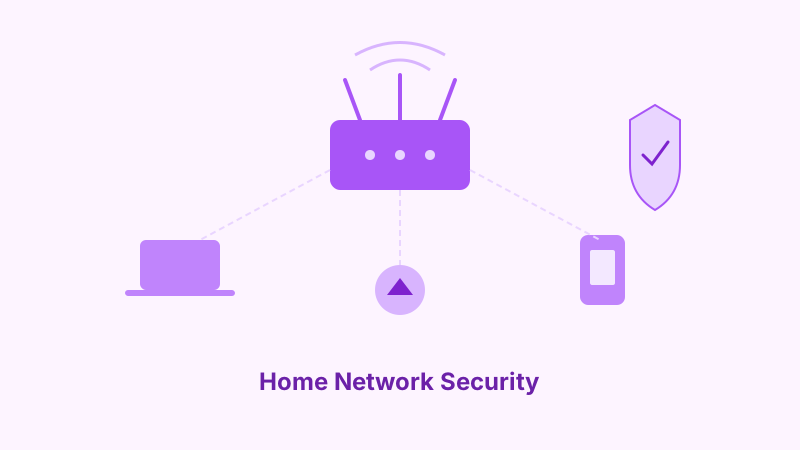
Your home network is the gateway to your digital life. Every device you use — computers, phones, tablets, smart TVs, security cameras, voice assistants, and countless other gadgets — connects through it. If your network is compromised, an attacker can potentially access every device on it, intercept your internet traffic, steal personal information, or use your network for malicious purposes without your knowledge.
Despite this, most people never change their router’s default settings, use weak Wi-Fi passwords, and have no idea what devices are connected to their network. Securing your home network doesn’t require technical expertise — it requires awareness and a willingness to spend an hour or so configuring things properly. This guide walks you through everything you need to know.
Your Router Is the Front Door
Your router is the single most important device on your network. It controls all traffic between your devices and the internet, and it’s the first target for anyone trying to break into your network. Securing it properly is the foundation of home network security.
Change the Default Admin Credentials
Every router ships with default admin login credentials — often something like “admin/admin” or “admin/password.” These defaults are publicly known and published online. If you haven’t changed them, anyone who gains access to your network can log into your router’s admin panel and take complete control.
Access your router’s admin interface (usually by navigating to 192.168.0.1 or 192.168.1.1 in your browser), and change both the admin username and password to something strong and unique. Store these credentials in your password manager. This is the single most important step you can take.
Update the Firmware
Router manufacturers release firmware updates that patch security vulnerabilities and improve performance. Many routers don’t update automatically, so you need to check manually. Log into your router’s admin panel and look for a firmware update option. Set a reminder to check quarterly if your router doesn’t support automatic updates.
If your router is more than five years old and the manufacturer has stopped releasing updates, it’s time to replace it. An unpatched router with known vulnerabilities is a serious security risk, no matter how well you configure its other settings.
Disable Remote Management
Remote management allows your router’s admin panel to be accessed from outside your home network. Unless you have a specific reason to need this (and most people don’t), disable it. With remote management enabled, anyone on the internet could potentially attempt to log into your router’s admin interface.
Similarly, disable WPS (Wi-Fi Protected Setup). While WPS was designed to make connecting devices easier, it has known security vulnerabilities that allow attackers to brute-force their way onto your network. The convenience isn’t worth the risk.
Securing Your Wi-Fi
Your Wi-Fi signal doesn’t stop at your walls. Neighbors, passersby, and anyone within range can detect your network. Proper Wi-Fi security ensures that only authorized users can connect.
Use WPA3 or WPA2 Encryption
Your Wi-Fi encryption protocol determines how well your wireless traffic is protected. Use WPA3 if your router and devices support it — it’s the latest and most secure standard. If WPA3 isn’t available, use WPA2 with AES encryption. Never use WEP (Wired Equivalent Privacy), which is ancient and can be cracked in minutes, or WPA without the “2” or “3.”
Check your router’s wireless security settings to see which protocol you’re using. If your router only supports WEP or original WPA, it’s time for a new router.
Choose a Strong Wi-Fi Password
Your Wi-Fi password should be long (at least 16 characters), unique, and not based on easily guessable information like your address, name, or phone number. A passphrase of random words works well — it’s both strong and easier to remember and type on devices that require manual entry.
Avoid using the default Wi-Fi password printed on your router’s label. While these passwords look random, some router models generate them using predictable algorithms that attackers can reverse-engineer.
Change Your Network Name
Your router’s default network name (SSID) often reveals the manufacturer and sometimes the model — information that helps attackers identify potential vulnerabilities. Change it to something that doesn’t identify you or your router type. Don’t use your name, address, or apartment number.
You don’t need to hide your SSID (disabling SSID broadcast). Hidden networks are still detectable with basic tools, and hiding the SSID can actually cause connectivity issues with some devices. A strong password is far more effective than a hidden network name.
Create a Guest Network
Most modern routers support creating a separate guest network. Use it for visitors and for devices that don’t need access to your main computers and files. The guest network provides internet access but keeps devices isolated from your primary network.
This is particularly useful for IoT devices (smart home gadgets, smart TVs, etc.), which often have weaker security and could serve as entry points to your network. Putting them on a separate network limits the damage if one is compromised.
Managing Connected Devices
The average home now has dozens of connected devices. Managing what connects to your network is essential for maintaining security.
Know What’s on Your Network
Periodically review the devices connected to your network. Your router’s admin panel typically shows a list of connected devices with their names, IP addresses, and MAC addresses. If you see something you don’t recognize, investigate. It might be a forgotten device — or it might be an unauthorized connection.
Some routers and third-party apps can send you notifications when a new device joins your network. This is a useful early warning system for unauthorized access.
Keep All Devices Updated
Every device on your network is a potential entry point. Keep the firmware and software on all your devices updated — not just your computers and phones, but also smart TVs, cameras, voice assistants, and any other connected gadgets. If a device no longer receives security updates from its manufacturer, consider whether it’s safe to keep on your network.
Secure Your Smart Home Devices
IoT devices like smart cameras, doorbells, thermostats, and voice assistants are notoriously weak on security. Many ship with default passwords, minimal encryption, and irregular update schedules. For each smart device, change the default password, check for firmware updates, disable features you don’t use (especially remote access), and place it on your guest network rather than your primary network.
Be selective about which smart devices you actually need. Each one increases your network’s attack surface. That internet-connected toaster might seem fun, but it’s another device that could potentially be compromised.
Advanced Security Measures
For those who want to go further, these additional steps provide an extra layer of protection.
Use a DNS Filter
Switching to a security-focused DNS service can block access to known malicious websites before your browser even connects to them. Services like Quad9 (9.9.9.9), Cloudflare for Families (1.1.1.3), or OpenDNS provide free DNS filtering that blocks malware and phishing domains at the network level.
You can configure this on your router so that all devices on your network benefit automatically, without needing to install anything on individual devices.
Enable Your Router’s Firewall
Most routers include a built-in firewall that filters incoming traffic. Make sure it’s enabled — it usually is by default, but it’s worth verifying. The firewall blocks unsolicited incoming connections, preventing external attackers from reaching devices on your network directly.
Consider a VPN on Your Router
Installing a VPN on your router encrypts all internet traffic from every device on your network. This is particularly useful if you want to protect devices that don’t support VPN apps directly, like smart TVs or game consoles. Not all routers support this, and it will reduce your connection speed somewhat, but it provides a significant privacy boost.
Monitoring Your Network
Setting up your network securely is the first step. Maintaining that security requires ongoing attention.
Watch for Unusual Activity
Unexplained slowdowns, devices connecting at odd hours, or unusual traffic patterns can indicate that your network has been compromised. If your internet is suddenly slow and it’s not a service provider issue, check your connected devices list for unauthorized users.
Regular Security Checks
Set a quarterly reminder to review your network security. Check that your firmware is updated, review connected devices, verify your encryption settings, and ensure your passwords haven’t been compromised in any recent data breaches. Think of it like changing the batteries in your smoke detector — a small effort that prevents major problems.
The Bottom Line
Your home network is the foundation of your digital security. A properly configured router with strong encryption, updated firmware, and sensible device management protects everything connected to it. The initial setup takes about an hour, and quarterly check-ups take just a few minutes. Given that your network carries your financial transactions, private communications, and personal data, that time investment is well worth it.