A strong password is a good start, but it’s no longer enough on its own. Data breaches expose millions of passwords every year, and even the most complex password can be stolen through phishing, malware, or a compromised database. That’s where two-factor authentication comes in — it adds a second layer of protection so that even if someone steals your password, they still can’t access your account.
Despite being one of the most effective security measures available, many people still haven’t enabled 2FA on their accounts. Often this is because it seems complicated or inconvenient. In reality, setting it up takes just a few minutes, and using it daily adds only seconds to your login process. The security benefit far outweighs the minor effort involved.
What Is Two-Factor Authentication?
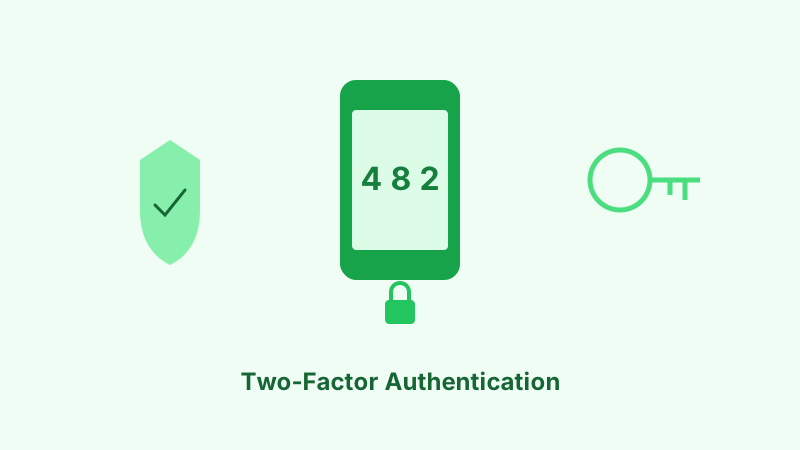
Two-factor authentication requires you to prove your identity in two different ways when logging in. The first factor is something you know — your password. The second factor is something you have or something you are. This could be a code sent to your phone, a code generated by an app, a physical security key, or even your fingerprint.
The idea is simple: even if an attacker obtains your password, they would also need access to your second factor to break into your account. Since the second factor is typically a physical device in your possession, remote attackers are effectively locked out.
The Three Types of Authentication Factors
Authentication factors fall into three categories, and understanding them helps you choose the right 2FA method for your needs.
Something you know includes passwords, PINs, and security questions. This is the most common factor but also the most vulnerable, since this information can be guessed, stolen, or leaked.
Something you have includes your phone, a security key, or a smart card. This factor is much harder for remote attackers to compromise because they would need physical access to the device.
Something you are includes biometrics like fingerprints, face recognition, or voice patterns. While convenient, biometrics have the downside that they can’t be changed if compromised.
Two-factor authentication combines two of these categories — typically your password (something you know) with a device-based verification (something you have).
Why 2FA Matters More Than Ever
The threat landscape has evolved dramatically. Attackers now have access to massive databases of stolen credentials, sophisticated phishing kits that clone login pages perfectly, and automated tools that can try thousands of password combinations per second.
Password Breaches Are Constant
Major data breaches happen regularly. When a service you use gets breached, your password for that service is exposed. If you’ve reused that password anywhere else — and most people do — all those accounts are now vulnerable too. With 2FA enabled, a stolen password alone isn’t enough to grant access.
Phishing Is Increasingly Sophisticated
Modern phishing attacks can fool even tech-savvy users. Attackers create pixel-perfect copies of login pages and send convincing emails that appear to come from legitimate services. If you accidentally enter your password on a phishing page, 2FA ensures the attacker still can’t use it — they don’t have your second factor.
Credential Stuffing Attacks
Attackers take stolen username-password combinations from one breach and automatically try them on hundreds of other services. This technique, called credential stuffing, is remarkably effective because of widespread password reuse. Two-factor authentication stops these attacks completely.
Types of Two-Factor Authentication
Not all 2FA methods are created equal. Understanding the strengths and weaknesses of each helps you make the best choice for your security needs.
SMS-Based 2FA
When you enable SMS-based 2FA, the service sends a text message with a one-time code to your phone number each time you log in. You enter this code after your password to complete the login.
SMS-based 2FA is better than no 2FA at all, but it has known weaknesses. Attackers can intercept SMS messages through SIM swapping — convincing your mobile carrier to transfer your phone number to their SIM card. They can also exploit vulnerabilities in the SS7 protocol used by mobile networks. For this reason, security experts recommend using other methods when available.
Authenticator Apps
Authenticator apps like Google Authenticator, Microsoft Authenticator, or Authy generate time-based one-time passwords (TOTP) directly on your device. These codes change every 30 seconds and don’t require a cellular connection or internet access to generate.
This method is significantly more secure than SMS because the codes never travel over a network where they could be intercepted. Authenticator apps are free, easy to set up, and work with most online services. For most people, this is the best balance of security and convenience.
Hardware Security Keys
Physical security keys like YubiKey or Google Titan are small USB or NFC devices that you plug in or tap when logging in. They use cryptographic protocols (FIDO2/WebAuthn) that are virtually impossible to phish — the key communicates directly with the legitimate website and won’t respond to a fake one.
Hardware keys provide the strongest protection available but cost money and require you to carry the physical key. They’re particularly recommended for high-value accounts like email, banking, and cloud storage.
Biometric Authentication
Some services and devices use fingerprints, face recognition, or other biometric data as a second factor. Modern smartphones have made biometric authentication commonplace, and it’s generally both secure and convenient.
The main limitation is that biometric data can’t be changed if compromised, unlike a password or security key. However, biometric data is typically processed locally on your device rather than being sent to a server, which limits the risk of remote theft.
How to Set Up 2FA on Your Key Accounts
The setup process varies by service, but the general steps are similar. Start with your most important accounts — email, banking, and social media — and work outward from there.
Email Accounts
Your email account is arguably the most important to protect because it’s typically used to reset passwords on other services. If an attacker controls your email, they can take over virtually everything else.
For Gmail, go to your Google Account settings, select Security, then click on 2-Step Verification. You’ll be guided through the setup process. Google supports authenticator apps, security keys, and phone prompts.
For Outlook and Microsoft accounts, visit account.microsoft.com, go to Security, then Advanced security options. Enable two-step verification and choose your preferred method.
Banking and Financial Services
Most banks now offer 2FA, often requiring it by default. Check your bank’s security settings or contact customer support if you’re unsure how to enable it. Use an authenticator app rather than SMS if given the choice, as financial accounts are high-value targets.
Social Media
Facebook, Instagram, Twitter, LinkedIn, and other platforms all support 2FA. You’ll typically find the option under Settings, then Security or Privacy. Enable it on every social media account you use — compromised social media accounts are frequently used for scams targeting your contacts.
Best Practices for Using 2FA
Setting up 2FA is just the beginning. Following these practices ensures you get the maximum security benefit without locking yourself out.
Save Your Backup Codes
When you enable 2FA, most services provide backup codes — one-time use codes that let you access your account if you lose your second factor. Save these somewhere secure, like a password manager or a printed sheet stored in a safe place. Losing access to your second factor without backup codes can mean permanent account lockout.
Use an Authenticator App as Your Default
Whenever a service gives you the choice, prefer an authenticator app over SMS. It’s more secure and works even without cell service. If the service supports security keys and you have one, that’s even better.
Don’t Rely on a Single Device
If your phone is your only second factor and you lose it, you could be locked out of everything. Consider setting up your authenticator app on a second device, using a password manager with built-in 2FA support, or keeping backup codes accessible.
Enable 2FA Everywhere It’s Available
Don’t just protect your email and bank. Enable 2FA on every service that offers it — cloud storage, shopping sites, domain registrars, hosting services, and any account that holds personal information or financial data.
Common Concerns About 2FA
People often hesitate to enable 2FA because of perceived inconvenience or fear of being locked out. Here’s the reality.
Is It Really That Inconvenient?
Most services remember your device for a set period (often 30 days), so you don’t need to enter a 2FA code every single time. On your regular devices, you might only need to verify once a month. On new or unrecognized devices, you’ll need to verify — which is exactly when protection matters most.
What If I Lose My Phone?
This is why backup codes exist. Print them and store them securely. You can also set up your authenticator on multiple devices or use a cloud-synced authenticator app like Authy. If you do lose your phone, most services have account recovery processes that verify your identity through alternative means.
Does 2FA Make Me Completely Safe?
No single security measure provides absolute protection. 2FA dramatically reduces your risk, but you should still use strong unique passwords, stay vigilant about phishing, and keep your devices updated. It also does nothing about tracking — 2FA protects the account, not the browsing session, so pair it with browser privacy extensions if data collection is a concern too. Think of 2FA as one crucial layer in a multi-layered security approach.
The Bottom Line
Enabling two-factor authentication is one of the single most impactful things you can do for your online security. It takes minutes to set up, adds only seconds to your login process, and blocks the vast majority of account takeover attacks. Start with your email account today — it’s the gateway to everything else — then work through your other important accounts. Your future self will thank you.